Last updated: September 30, 2026
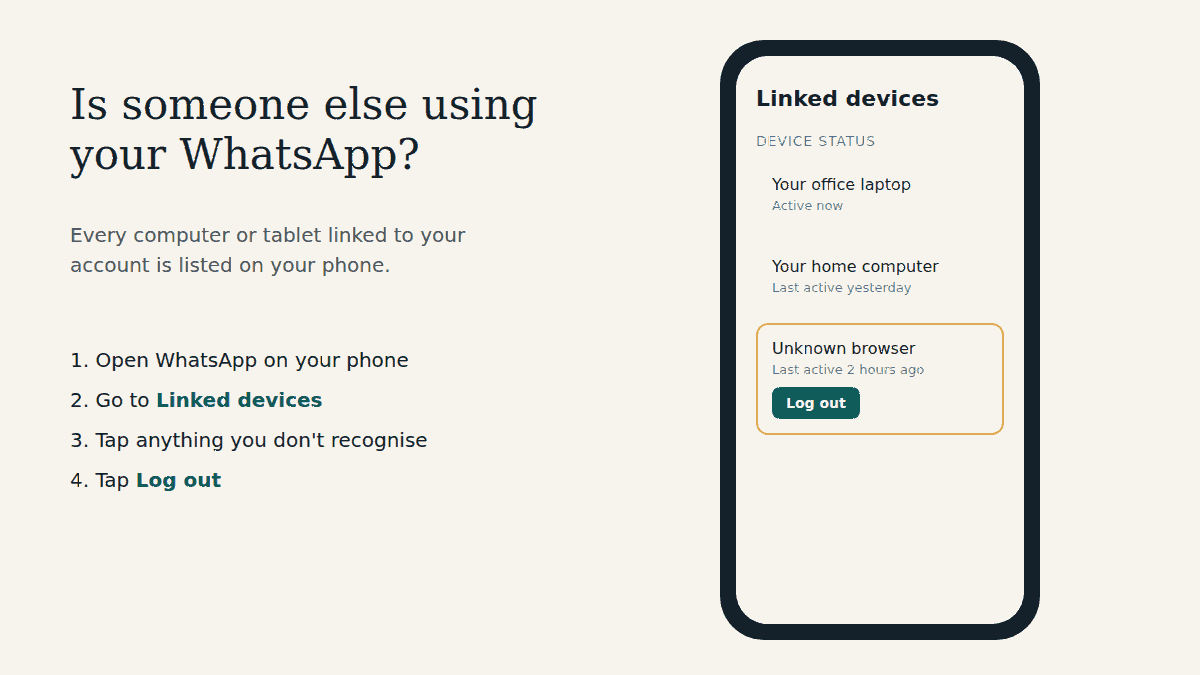
The short answer: open WhatsApp on your phone and go to Linked devices. Every computer, browser or tablet using your account is listed there. If you see one you don’t recognise, tap it and tap Log out. It’s disconnected immediately, even if the computer is on the other side of the world.
Why this check works
WhatsApp Web isn’t a separate account. It’s a device linked to the WhatsApp account on your phone, and you can link up to four of them. Nobody can read your chats on WhatsApp Web unless their device is linked, and every linked device shows up in one place on your phone. That makes it one of the easiest security checks you can do.
Step 1: Open Linked devices
On Android
- Open WhatsApp.
- Tap the three-dot menu (⋮) at the top right.
- Tap Linked devices.
On iPhone
- Open WhatsApp.
- Tap Settings (or your profile picture).
- Tap Linked devices.
Step 2: Read the list carefully
Each entry is one linked device, usually shown with the browser or operating system and when it was last active. Go through them one at a time and ask:
- Do I own or use this device? A “Chrome (Windows)” entry might be your work laptop. Or it might not.
- Does the “last active” time make sense? If it says active 2 hours ago and you haven’t touched a computer today, that’s a red flag.
- Is it an old computer I forgot about? A cyber café PC, a friend’s laptop, your old office computer. Even if it’s harmless, you don’t need it linked.
If you’re not sure about an entry, treat it as unknown. Logging out a device you actually use costs you nothing except linking it again next time.
Step 3: Log out anything you don’t recognise
- In Linked devices, tap the device.
- Tap Log out and confirm.
- Repeat for every device you don’t recognise.
The device loses access to your account straight away. Whoever was using it would need your phone to link again, which is why the next step matters.
Step 4: Stop it happening again
An unknown device almost always got there in one of three ways: someone used your unlocked phone to scan a code, you were tricked into scanning or typing a code, or you left WhatsApp Web open on a shared computer. So:
- Lock your phone with a PIN, fingerprint or face, and don’t leave it unlocked around others. Linking a device asks for this same verification.
- Never scan or enter a code that someone sends you, whether it’s in a message, on a “vote” page or on a site asking you to “verify”. Linking codes should only go from a computer you’re sitting at into your own phone.
- Turn on two-step verification in Settings > Account > Two-step verification.
- Keep WhatsApp notifications on. WhatsApp recommends this so you can review and remove a device you don’t recognise as soon as it’s linked.
Our WhatsApp Web safety guide explains these habits in more detail, including the “GhostPairing” and fake voting scams.
Other signs someone may be reading your messages
- A WhatsApp notification about a new linked device you didn’t add
- Messages showing as read before you opened them
- Sent messages you didn’t write, or contacts replying to messages you never sent
These point to the same fix: check Linked devices and log out what isn’t yours. If you’ve been logged out of WhatsApp on your own phone, that’s a different problem: someone may have registered your number elsewhere. Follow the official recovery steps in the WhatsApp Help Center.
Frequently asked questions
Can I see which messages they read?
No. WhatsApp doesn’t show a history of what a linked device looked at. Assume anything in your chats could have been seen, and warn contacts if sensitive information was shared.
Will the other person know I logged them out?
Their WhatsApp Web session ends and they’d be back at the login screen, so they may notice they’ve lost access. That’s fine: without your phone, they can’t link again.
Do linked devices disconnect on their own?
Yes. WhatsApp automatically disconnects a linked device after 30 days of inactivity, and logs out linked devices if your primary phone isn’t used for more than 14 days. A device that’s actively being used, though, stays linked until someone logs it out, so don’t rely on this.
How often should I check?
Make it a habit: once a month, after using any shared computer, and immediately if you get a linking notification you didn’t expect.
Related guides
- WhatsApp Web safety guide: precautions everyone should take
- How to log in to WhatsApp Web (and log out)
- New to WhatsApp Web? Start here
Sources checked: WhatsApp Help Center articles “About linked devices”, “How to link a device” and “How to unlink a device” (faq.whatsapp.com). Reviewed September 30, 2026.
This is an independent guide. We are not affiliated with, endorsed by, or connected to WhatsApp or Meta.
Guides: Login & Access · Features & Calling · Desktop & Other Ways · Safety · Fix Problems · Start Here
About this site: About · Contact · Privacy Policy · Terms of Use · Cookies · Disclaimer