Author: Ankit Kumar

  • WhatsApp Web Not Working? Every Fix, Problem by Problem

    WhatsApp Web Not Working? Every Fix, Problem by Problem

    Last updated: October 25, 2026

    The short answer: most WhatsApp Web problems come from a weak internet connection or the browser. Reload web.whatsapp.com, check your internet, use an up-to-date browser, and clear the browser’s cache and cookies. If it logged you out by itself, open WhatsApp on your phone (it needs to be used at least every 14 days) and link the computer again. Find your exact problem below for the full fix.
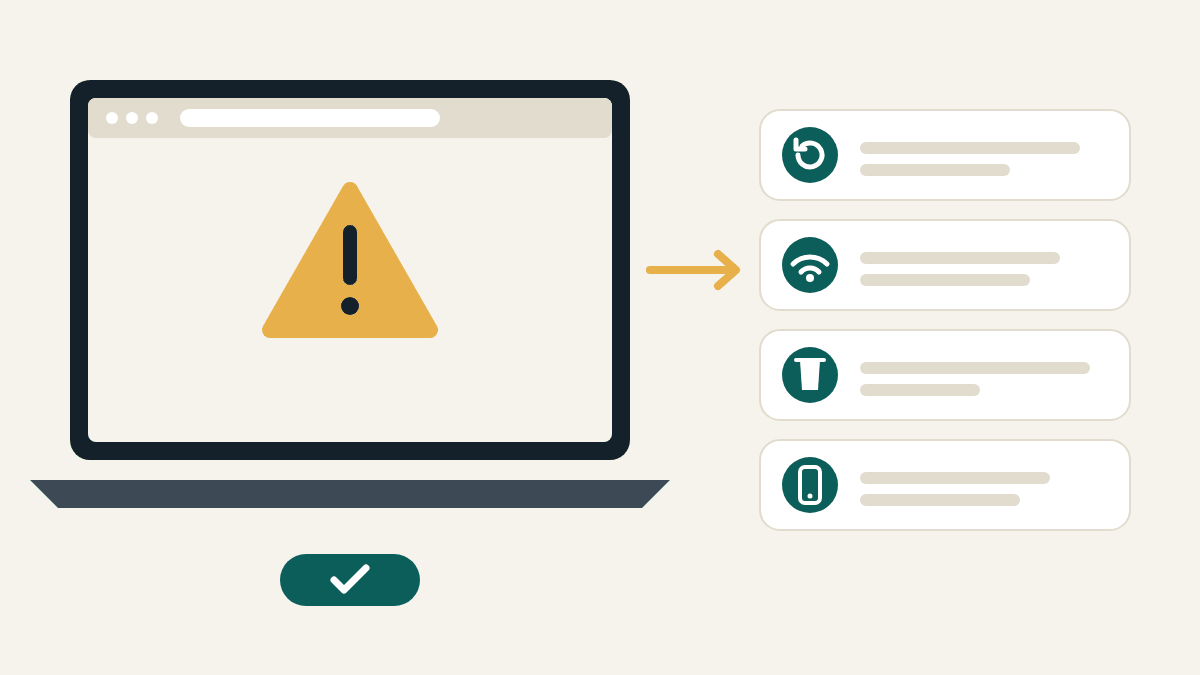
    Illustration of a laptop browser showing a warning sign, with an arrow to four fix cards: reload, check Wi-Fi, clear browser data, and open WhatsApp on your phone
    Reload, check the connection, clear browser data, and open WhatsApp on your phone: these four fix most problems.

    Start here: three quick checks

    1. Is it the real site? The address bar must say exactly web.whatsapp.com. Copycat pages “don’t work” because they’re fakes.
    2. Is the computer online? Open any other website. If that fails too, the problem is your internet, not WhatsApp.
    3. Is WhatsApp working on your phone? Open it and send yourself a test message. Your phone should also have been used for WhatsApp in the last 14 days, or linked devices are logged out.

    WhatsApp Web won’t load, or the page is blank

    1. Reload the page.
    2. Use a supported browser. WhatsApp Web works on the latest versions of Chrome, Firefox, Microsoft Edge, Opera and Safari. It doesn’t work on some older browsers, including Internet Explorer. Update your browser if it’s out of date.
    3. Clear the browser’s cache and cookies, then open web.whatsapp.com again. Your browser’s help pages show how.
    4. Try a private/incognito window. If it works there, an extension (such as an ad or script blocker) is probably the cause. Turn extensions off one by one to find it.
    5. Restart the computer. WhatsApp suggests turning the device off, waiting 30 seconds, and turning it back on.

    “Computer not connected” or messages won’t send

    WhatsApp says a poor internet connection is the most common reason for problems sending and receiving chats or uploading and downloading photos and videos. A yellow icon next to Computer not connected means the computer may not have an active internet connection.

    1. Check the computer’s internet. If there’s no connection at all, contact your internet provider.
    2. Refresh the page, then log out of WhatsApp Web and log back in.
    3. Try another network. Office and university Wi-Fi sometimes blocks WhatsApp. Switch to a different Wi-Fi network or a phone hotspot.
    4. If you manage the network, WhatsApp says to set it to let traffic to web.whatsapp.com and .whatsapp.net through.

    WhatsApp Web keeps logging out

    A linked computer gets logged out when:

    • Your phone hasn’t used WhatsApp for more than 14 days. Open WhatsApp on your primary phone regularly to keep linked devices connected.
    • The computer wasn’t used for 30 days. WhatsApp disconnects inactive linked devices automatically.
    • The browser’s data was cleared, for example by a cleaning tool, a private window, or a browser set to delete cookies when it closes.
    • Someone logged it out from the phone in Linked devices.

    The fix is to link the computer again. If you didn’t log it out and none of the reasons above fit, check the Linked devices list on your phone for anything you don’t recognise: see how to check if someone is using your WhatsApp Web.

    Can’t log in, or the QR code won’t scan

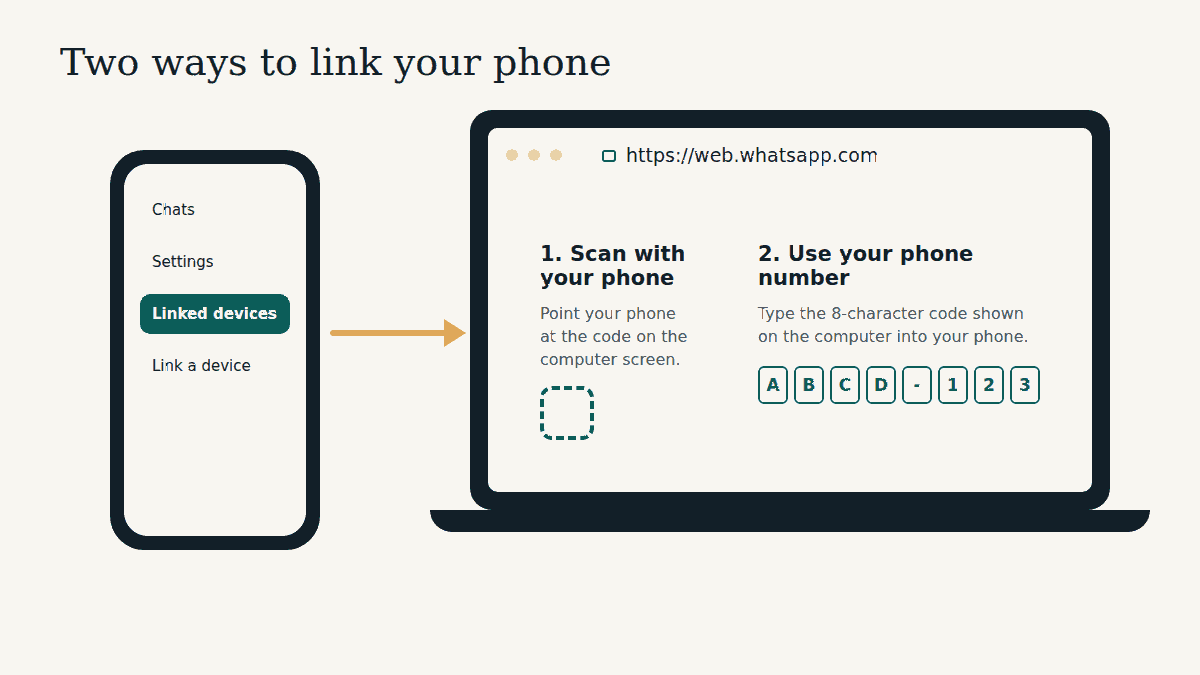
    • Scan from inside WhatsApp (Linked devices > Link a device), not your camera app.
    • You can link up to four devices. If you already have four, log one out first.
    • No camera? Use Log in with phone number and enter the 8-character code on your phone instead.

    Every step for this problem is in WhatsApp Web QR code not working? Fixes, and the normal login steps are in how to log in to WhatsApp Web.

    Calls don’t work

    WhatsApp is rolling out calling on WhatsApp Web gradually, so call buttons may not have reached your account yet. If they’re there but nobody can hear you, allow the microphone and camera for web.whatsapp.com in your browser and in your computer’s privacy settings. Details: how to make voice and video calls on WhatsApp Web.

    Some features are missing

    That may be normal. WhatsApp says viewing live location and creating or viewing broadcast lists aren’t supported on linked devices. Use your phone for those.

    Quick fix table

    ProblemTry first
    Page blank or won’t loadReload, update browser, clear cache and cookies
    “Computer not connected”Check internet, try another network or hotspot
    Messages or photos stuckCheck connection, log out and back in
    Logged out by itselfOpen WhatsApp on your phone, link again
    QR code won’t scanScan from Linked devices, or log in with phone number
    No call buttonsFeature still rolling out; update browser

    Still not working?

    • Try a different browser, or WhatsApp’s desktop app for Windows or Mac.
    • Check WhatsApp’s own help pages and contact options in the WhatsApp Help Center.

    Safety tip: people who offer to “fix” your WhatsApp by message, phone call or a website often want your code. WhatsApp support will never ask you to share a verification code or scan a code they send. More in our WhatsApp Web safety guide.

    Frequently asked questions

    Does my phone need to be on for WhatsApp Web to work?

    No. Linked devices work even when your phone is off. But WhatsApp logs them out if you don’t use WhatsApp on your phone for more than 14 days.

    Why does WhatsApp Web work at home but not at the office?

    Office, school and university networks sometimes block WhatsApp. Try a hotspot, or ask the network administrator to allow web.whatsapp.com and .whatsapp.net.

    Will clearing cookies delete my chats?

    It logs WhatsApp Web out in that browser, but your chats stay on your phone and come back when you link the computer again.

    Does WhatsApp Web work in Internet Explorer?

    No. Use the latest Chrome, Firefox, Microsoft Edge, Opera or Safari.

    Related guides

    Sources checked: WhatsApp Help Center articles “How to fix connection issues” (WhatsApp Web), “About linked devices”, “How to link a device” and “How to link a device with phone number” (faq.whatsapp.com); WhatsApp Blog, “Introducing Web Calling on WhatsApp” (July 28, 2026). Reviewed October 25, 2026.


    This is an independent guide. We are not affiliated with, endorsed by, or connected to WhatsApp or Meta.

  • How to Make Voice and Video Calls on WhatsApp Web

    How to Make Voice and Video Calls on WhatsApp Web

    Last updated: October 8, 2026

    The short answer: open web.whatsapp.com, open the chat or group you want to call, and use the voice or video call button. The first time, your browser asks to use your microphone (and camera for video): choose Allow. WhatsApp announced browser calling on July 28, 2026 and is rolling it out gradually, so if you don’t see call buttons yet, the feature simply hasn’t reached your account.

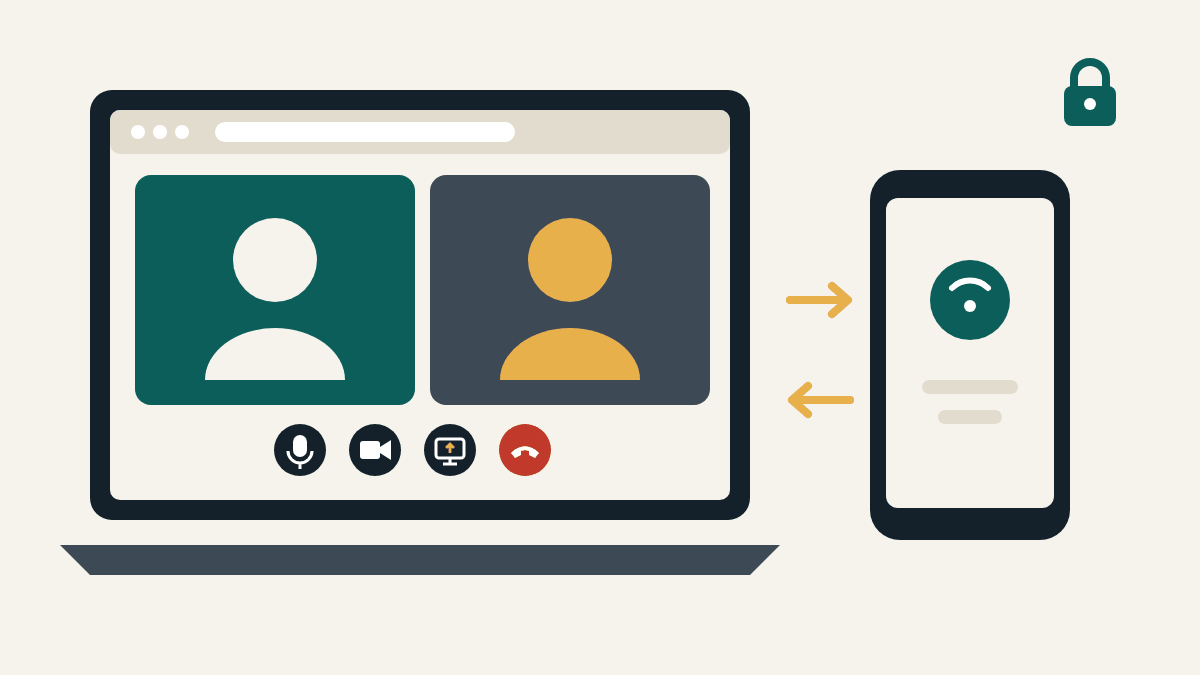
    Illustration of a video call open in a laptop browser with microphone, camera, screen-share and end-call buttons, arrows to a phone showing a call can move between devices, and a padlock for encryption
    An illustration, not a screenshot: calls run in the browser, and group calls can move between your phone and computer.

    What WhatsApp Web calling can do

    Until 2026 you needed the WhatsApp desktop app to make calls from a computer. In its July 28, 2026 announcement, WhatsApp said you can now:

    • Make and receive audio and video calls, both one-to-one and in groups, directly from WhatsApp Web, with no app download.
    • Share your screen and send reactions during a call.
    • Use a Calls tab with your full call history and favourites.
    • Call privately and for free: WhatsApp says web calls are end-to-end encrypted, with no time limits and at no cost.

    WhatsApp says these features are “rolling out gradually”, so some people will get them before others.

    How to make a call on WhatsApp Web

    1. On your computer, go to https://web.whatsapp.com and log in. New to this? See how to log in to WhatsApp Web.
    2. Open the chat with the person, or the group, you want to call. You can also start from the Calls tab.
    3. Choose a voice call or a video call using the call buttons.
    4. When the browser asks to use your microphone (and camera for video), choose Allow. You usually only need to do this once.
    5. To share your screen, use the screen-sharing button during the call and pick the window or screen you want to show. Share only what you’re happy for everyone on the call to see.

    To answer an incoming call, keep the WhatsApp Web tab open. When someone calls, accept it on the computer just as you would on your phone.

    Other new calling features

    WhatsApp announced these at the same time:

    • Call transfer: move an active group call from one device to another without hanging up, for example from your phone or tablet to WhatsApp Web or Desktop, or back.
    • Waiting room: if you create a call link with Require approval to join turned on, people wait until you let them in.
    • QuickHD: high-definition video from the first few seconds of a call.
    • Noise suppression: reduces background noise around you. You can manage it any time in your in-call settings.

    Call not working? Fixes

    No call buttons

    • The feature may not have reached your account yet. WhatsApp is rolling it out gradually.
    • Reload web.whatsapp.com and make sure your browser is up to date. WhatsApp Web works on the latest versions of Chrome, Firefox, Microsoft Edge, Opera and Safari.
    • Need to call from a computer today? WhatsApp’s desktop app for Windows and Mac also supports calls.

    The other person can’t hear or see you

    1. Check the browser permission. Click the icon at the left of the address bar on web.whatsapp.com and make sure Microphone and Camera are set to Allow. Then reload the page.
    2. Check your computer’s privacy settings. On Windows, open Settings > Privacy & security > Microphone (and Camera) and allow your browser. On a Mac, open System Settings > Privacy & Security, then Microphone and Camera.
    3. Close other apps that use the camera, like another video-call app. Usually only one app can use the camera at a time.
    4. Pick the right device. If you have a headset or an external webcam, make sure the browser is using it.

    Echo, choppy audio or a frozen picture

    • Use headphones to stop echo.
    • Move closer to the Wi-Fi router, or switch off video and keep audio if the connection is weak.
    • Office and college networks sometimes block WhatsApp. Try another network or a hotspot.

    Safety tip: only call from the real web.whatsapp.com. Be careful with call links from people you don’t know, and never share a WhatsApp code with someone during or after a call, even if they say they’re from “WhatsApp support”. Read more in our WhatsApp Web safety guide.

    Frequently asked questions

    Do I need to install anything to call on WhatsApp Web?

    No. WhatsApp says calling on the web needs no app download. You only need to allow your browser to use your microphone and camera.

    Are WhatsApp Web calls free and private?

    WhatsApp says web calls are end-to-end encrypted, have no time limits and cost nothing. Your internet provider’s normal data charges still apply.

    Can I make group calls on WhatsApp Web?

    Yes. WhatsApp’s announcement covers both one-to-one and group calls, and you can move an active group call between your phone and computer without hanging up.

    Why can my friend call on WhatsApp Web but I can’t?

    The feature is rolling out gradually, so it can reach one account before another. Keep your browser up to date and check again later.

    Related guides

    Sources checked: WhatsApp Blog, “Introducing Web Calling on WhatsApp, Plus More New Updates” (blog.whatsapp.com, July 28, 2026); Meta Newsroom, “Introducing WhatsApp Web Calling, Plus More New Features” (about.fb.com, July 2026); WhatsApp Help Center, “How to fix connection issues” (faq.whatsapp.com). Reviewed October 8, 2026.


    This is an independent guide. We are not affiliated with, endorsed by, or connected to WhatsApp or Meta.

  • WhatsApp Web QR Code Not Working? Fixes for Not Loading and Not Scanning

    WhatsApp Web QR Code Not Working? Fixes for Not Loading and Not Scanning

    Last updated: October 1, 2026

    The short answer: if the QR code won’t appear, the problem is on the computer: reload web.whatsapp.com, use an up-to-date browser, and try another network. If your phone won’t scan it, make sure you’re scanning from inside WhatsApp (Linked devices > Link a device), not your camera app, then turn up the screen brightness and hold the phone steady. Still stuck? Skip the QR code completely and link with your phone number instead.

    Work through the sections below in order. Most people are fixed within the first two or three steps.

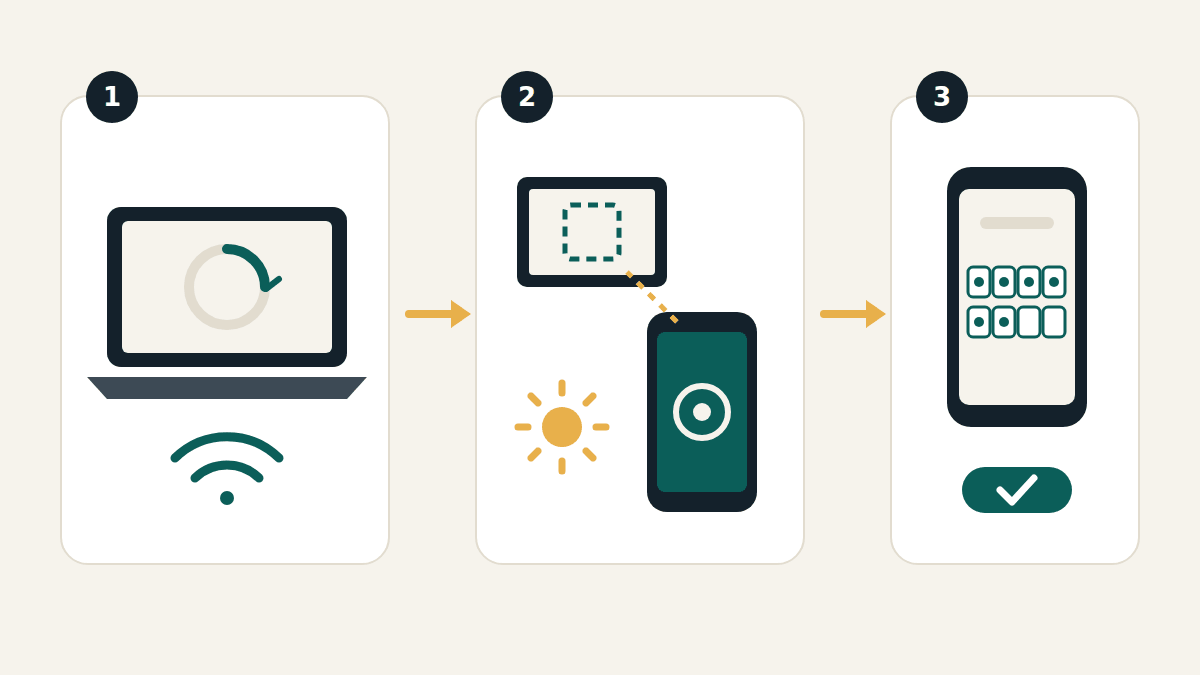
    Three-step diagram: a laptop with a reload symbol and Wi-Fi icon, a phone camera aimed at a computer screen next to a brightness symbol, and a phone with an 8-character code entry and a confirm tick
    Fix the computer first, then the phone. If neither works, use the 8-character code.

    First: are you on the real WhatsApp Web?

    Check the address bar. It must say exactly web.whatsapp.com. Fake pages often show a code that never works, or ask for a username and password (WhatsApp Web never does). If you got there from a link in a message or an ad, close the tab and type the address yourself.

    If the QR code doesn’t appear or keeps loading

    A blank box, an endless spinner or a code that never shows up means the page can’t reach WhatsApp properly. Try these on the computer:

    1. Reload the page. This also gives you a fresh code.
    2. Use a supported, up-to-date browser. WhatsApp Web works on the latest versions of Chrome, Firefox, Microsoft Edge, Opera and Safari. It doesn’t work on some older browsers, including Internet Explorer.
    3. Clear your browser’s cache and cookies, then open web.whatsapp.com again. Your browser’s help pages explain how.
    4. Try a private/incognito window. If the code appears there, a browser extension (such as an ad or script blocker) is probably getting in the way. Turn extensions off one at a time to find it.
    5. Change networks. Office, school and university Wi-Fi sometimes blocks WhatsApp. Try a different Wi-Fi network or your phone’s hotspot. If you manage the network, WhatsApp says to let traffic to web.whatsapp.com and .whatsapp.net through.
    6. Restart the computer. WhatsApp suggests turning the device off, waiting 30 seconds and turning it back on.

    If your phone won’t scan the QR code

    The code is on screen but nothing happens when you point your phone at it. Check these, in this order:

    1. Scan from inside WhatsApp, not your camera app. A normal camera or QR scanner app can’t link your account. On Android, open WhatsApp and tap ⋮ > Linked devices > Link a device. On iPhone, tap Settings > Linked devices > Link a device. Then point the phone at the code.
    2. Get past the identity check. WhatsApp may ask for your fingerprint, face or the PIN that unlocks your phone before the scanner opens. That’s normal.
    3. Make the code easy to read. Turn the computer screen’s brightness up, set the browser zoom to 100%, and wipe the phone’s camera lens. Hold the phone about 20–30 cm away, straight on, and keep it still. Avoid reflections from lamps or windows on the screen.
    4. Reload for a fresh code. If the code has been on screen for a while, reload web.whatsapp.com and scan the new one straight away.
    5. Check WhatsApp’s camera permission. If the scanner shows a black screen, open your phone’s settings, find WhatsApp, and allow access to the camera.
    6. Update WhatsApp on your phone from the Play Store or App Store, then try again.

    If it scans but you don’t get logged in

    • Both devices need internet. Your phone and the computer must both be online while they link.
    • You may already have four linked devices. WhatsApp allows up to four. Open Linked devices on your phone and log out one you no longer use.
    • Use your primary phone. Linking is done from the phone where your number is registered.
    • Answer the confirmation. If WhatsApp doesn’t recognise the computer, it asks whether you want to link it. Tap Link device only if it’s the computer in front of you.

    Skip the QR code: link with your phone number

    If the camera is broken or the code simply won’t scan, you don’t need it. On web.whatsapp.com, choose Log in with phone number, enter your number, and the computer shows an 8-character code. Tap the notification on your phone, confirm, and type that code into your phone. WhatsApp says this option works on WhatsApp Web and WhatsApp for Windows. Full steps are in our WhatsApp Web login guide.

    Safety tip: only scan a WhatsApp code that’s on a computer you are sitting at. Never scan a code, or type a code, that someone sends you in a message or shows you on another website. That links their device to your account. Read why in our WhatsApp Web safety guide.

    Quick fix table

    What you seeMost likely causeTry this
    No code, or it keeps loadingBrowser or networkReload, update browser, clear cache, try another network
    Code shows, phone does nothingScanning from the wrong appUse WhatsApp: Linked devices > Link a device
    Scanner is blackNo camera permissionAllow camera access for WhatsApp in phone settings
    Phone can’t focusDim screen, glare, dirty lensBrighter screen, zoom 100%, clean lens, hold steady
    Scans, but no loginOffline device or 4 devices already linkedCheck internet, remove an old linked device
    Camera broken–Log in with phone number (8-character code)

    Frequently asked questions

    Can I scan the WhatsApp Web QR code with Google Lens or my camera app?

    No. The code has to be scanned from inside WhatsApp, under Linked devices, so WhatsApp knows which account to link. Another app will only read it as text.

    Why does the QR code keep changing?

    The code on screen changes after a short time. That’s normal. Just scan whichever code is showing when your phone is ready, or reload the page for a new one.

    Does WhatsApp Web work on Internet Explorer?

    No. Use the latest version of Chrome, Firefox, Microsoft Edge, Opera or Safari.

    Can I log in without scanning anything?

    Yes. Choose to log in with your phone number on web.whatsapp.com and enter the 8-character code on your phone. You still need your phone, but not its camera.

    Related guides

    Sources checked: WhatsApp Help Center articles “How to fix connection issues” (WhatsApp Web), “How to link a device”, “How to link a device with phone number” and “About linked devices” (faq.whatsapp.com). Reviewed October 1, 2026.


    This is an independent guide. We are not affiliated with, endorsed by, or connected to WhatsApp or Meta.

  • How to Check if Someone Is Using Your WhatsApp Web

    How to Check if Someone Is Using Your WhatsApp Web

    Last updated: September 30, 2026

    The short answer: open WhatsApp on your phone and go to Linked devices. Every computer, browser or tablet using your account is listed there. If you see one you don’t recognise, tap it and tap Log out. It’s disconnected immediately, even if the computer is on the other side of the world.

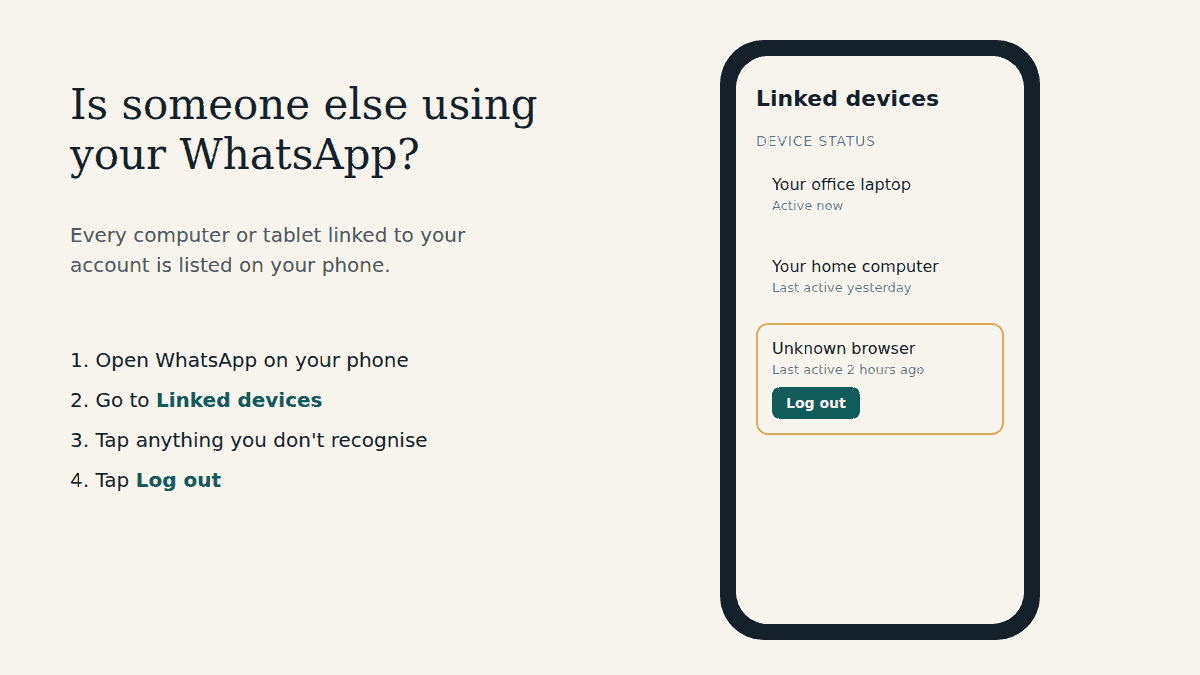
    Diagram of a phone's Linked devices list with two familiar computers and one unknown browser highlighted with a Log out button
    An illustration of the idea, not a screenshot: the real list on your phone may look slightly different.

    Why this check works

    WhatsApp Web isn’t a separate account. It’s a device linked to the WhatsApp account on your phone, and you can link up to four of them. Nobody can read your chats on WhatsApp Web unless their device is linked, and every linked device shows up in one place on your phone. That makes it one of the easiest security checks you can do.

    Step 1: Open Linked devices

    On Android

    1. Open WhatsApp.
    2. Tap the three-dot menu (⋮) at the top right.
    3. Tap Linked devices.

    On iPhone

    1. Open WhatsApp.
    2. Tap Settings (or your profile picture).
    3. Tap Linked devices.

    Step 2: Read the list carefully

    Each entry is one linked device, usually shown with the browser or operating system and when it was last active. Go through them one at a time and ask:

    • Do I own or use this device? A “Chrome (Windows)” entry might be your work laptop. Or it might not.
    • Does the “last active” time make sense? If it says active 2 hours ago and you haven’t touched a computer today, that’s a red flag.
    • Is it an old computer I forgot about? A cyber café PC, a friend’s laptop, your old office computer. Even if it’s harmless, you don’t need it linked.

    If you’re not sure about an entry, treat it as unknown. Logging out a device you actually use costs you nothing except linking it again next time.

    Step 3: Log out anything you don’t recognise

    1. In Linked devices, tap the device.
    2. Tap Log out and confirm.
    3. Repeat for every device you don’t recognise.

    The device loses access to your account straight away. Whoever was using it would need your phone to link again, which is why the next step matters.

    Step 4: Stop it happening again

    An unknown device almost always got there in one of three ways: someone used your unlocked phone to scan a code, you were tricked into scanning or typing a code, or you left WhatsApp Web open on a shared computer. So:

    • Lock your phone with a PIN, fingerprint or face, and don’t leave it unlocked around others. Linking a device asks for this same verification.
    • Never scan or enter a code that someone sends you, whether it’s in a message, on a “vote” page or on a site asking you to “verify”. Linking codes should only go from a computer you’re sitting at into your own phone.
    • Turn on two-step verification in Settings > Account > Two-step verification.
    • Keep WhatsApp notifications on. WhatsApp recommends this so you can review and remove a device you don’t recognise as soon as it’s linked.

    Our WhatsApp Web safety guide explains these habits in more detail, including the “GhostPairing” and fake voting scams.

    Other signs someone may be reading your messages

    • A WhatsApp notification about a new linked device you didn’t add
    • Messages showing as read before you opened them
    • Sent messages you didn’t write, or contacts replying to messages you never sent

    These point to the same fix: check Linked devices and log out what isn’t yours. If you’ve been logged out of WhatsApp on your own phone, that’s a different problem: someone may have registered your number elsewhere. Follow the official recovery steps in the WhatsApp Help Center.

    Frequently asked questions

    Can I see which messages they read?

    No. WhatsApp doesn’t show a history of what a linked device looked at. Assume anything in your chats could have been seen, and warn contacts if sensitive information was shared.

    Will the other person know I logged them out?

    Their WhatsApp Web session ends and they’d be back at the login screen, so they may notice they’ve lost access. That’s fine: without your phone, they can’t link again.

    Do linked devices disconnect on their own?

    Yes. WhatsApp automatically disconnects a linked device after 30 days of inactivity, and logs out linked devices if your primary phone isn’t used for more than 14 days. A device that’s actively being used, though, stays linked until someone logs it out, so don’t rely on this.

    How often should I check?

    Make it a habit: once a month, after using any shared computer, and immediately if you get a linking notification you didn’t expect.

    Related guides

    Sources checked: WhatsApp Help Center articles “About linked devices”, “How to link a device” and “How to unlink a device” (faq.whatsapp.com). Reviewed September 30, 2026.


    This is an independent guide. We are not affiliated with, endorsed by, or connected to WhatsApp or Meta.

  • WhatsApp Web Safety Guide: Precautions Everyone Should Take

    WhatsApp Web Safety Guide: Precautions Everyone Should Take

    Last updated: September 30, 2026

    The short answer: WhatsApp Web itself is safe to use. The risk comes from someone else getting a computer linked to your account, usually by tricking you into scanning a code, typing a code, or logging in on a fake website. Only log in at web.whatsapp.com, never share or enter a code someone sends you, check Linked devices on your phone regularly, turn on two-step verification, and log out of computers that aren’t yours.

    This guide explains why each of those habits matters, so you can spot a trick you haven’t seen before, not just the ones listed here.

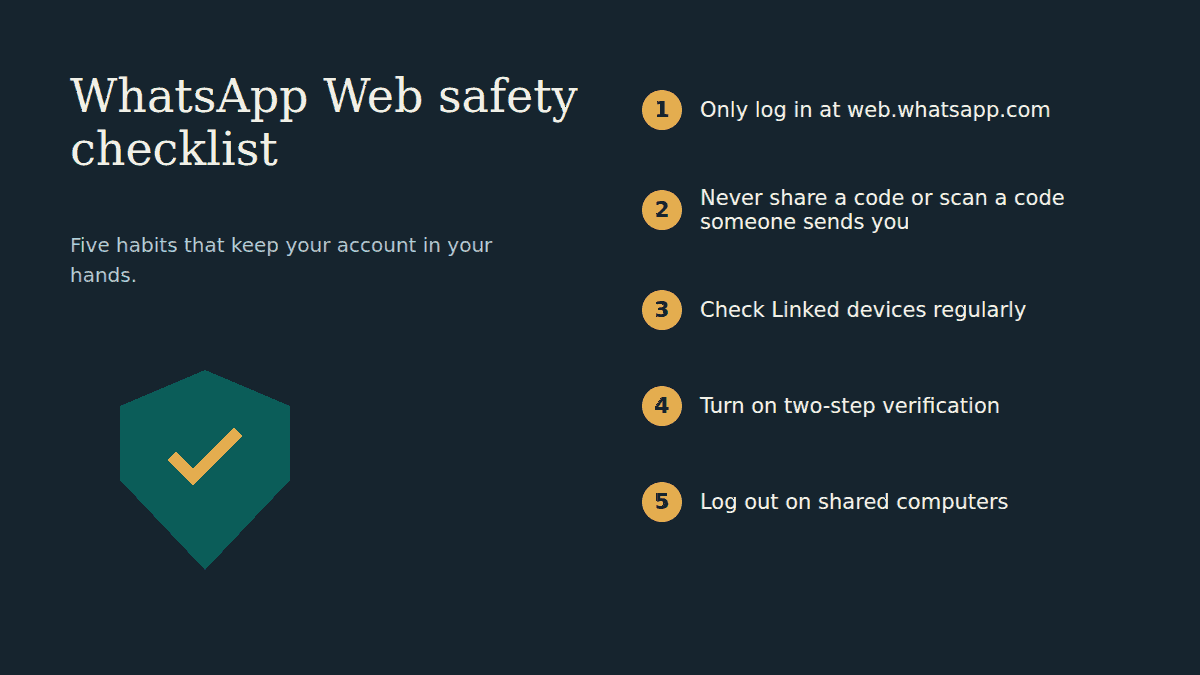
    Safety checklist graphic with a shield and five numbered habits: log in only at web.whatsapp.com, never share codes, check linked devices, turn on two-step verification, log out on shared computers

    How WhatsApp Web accounts actually get taken over

    Your messages are end-to-end encrypted, and WhatsApp says each linked device connects to your account independently with the same level of encryption. So attackers rarely try to “break in”. It’s much easier to get you to let them in. Nearly every takeover follows one of these patterns:

    • A linking trick. You’re persuaded to scan a code or type a code into WhatsApp that actually links the attacker’s computer to your account.
    • A stolen verification code. Someone tries to register your phone number on their phone and asks you to “forward the code you just got by mistake”.
    • An open computer. You used WhatsApp Web on an office, library or cyber café computer and never logged out.
    • An unofficial app or website. A “WhatsApp tool”, mod app or extension that asks you to link your account.

    The five habits below close each of these doors.

    1. Only log in at web.whatsapp.com

    The official address is https://web.whatsapp.com. Before you scan anything, look at the address bar and check that the part just before the first single “/” is exactly web.whatsapp.com. Fake pages use addresses that look close, add extra words, or hide the real address behind a shortened link.

    The safest routine: type the address yourself once, then bookmark it and always use that bookmark. Don’t “log in to WhatsApp” from a link in a message, an email, a search ad or a social media post. Also remember: WhatsApp Web never asks for a username or password. A page that does is fake.

    2. Never share a code, and never scan or enter a code someone sends you

    This is the single most important rule. There are two kinds of codes, and both can be used against you:

    • The verification code WhatsApp sends by SMS or call when a phone number is registered. WhatsApp’s own advice is to never share it with anyone. If you get one you didn’t ask for, someone typed your number, either by mistake or to try to take your account. Without that code, they can’t finish.
    • Linking codes: the QR code on a computer screen and the 8-character code used to link with a phone number. Legitimately, these only ever go from a computer you are sitting at into your own phone. If a website or person shows you a code to scan or type into WhatsApp, you’d be linking their device to your account.

    Scammers dress these requests up well. Security researchers at Gen Digital described a campaign they called “GhostPairing” in December 2025: victims got a message from a friend’s (already hijacked) account saying something like “I just found your photo!”, with a link to a fake page that asked them to “verify” by scanning or entering a code. That code linked the attacker’s device. Reports in 2026 described the same trick disguised as “vote for my friend in a competition”. The disguise changes; the ask is always a code.

    Quick safety tip: when linking, WhatsApp may show you the name and location of the device asking to link, or warn you about an unrecognised device with a Don’t link button. If you didn’t just start a login on a computer in front of you, tap Don’t link.

    3. Check Linked devices regularly

    Every computer, tablet or other device connected to your account appears under Linked devices on your phone. It takes ten seconds to look, and it’s the fastest way to catch a problem. If you see anything you don’t recognise, tap it and choose Log out. We walk through it step by step in how to check if someone is using your WhatsApp Web.

    WhatsApp also recommends keeping push notifications turned on for WhatsApp on your phone. When a new device is linked, you can tap the notification to review it and remove it if you don’t recognise it.

    4. Turn on two-step verification (and consider a passkey)

    Two-step verification adds a password that’s needed when your number is registered on a phone. Even if someone gets your SMS code, they’d still need that password. WhatsApp is moving from the old 6-digit PIN to a password, and you can add an email address so you can reset it if you forget.

    1. On your phone, open WhatsApp Settings > Account > Two-step verification.
    2. Turn on two-step verification.
    3. Create a strong password and confirm it. Don’t reuse a password from another account.
    4. Add an email address you can access (recommended), then follow the prompts.

    You can also set up a passkey, which links your account to your phone’s own security (fingerprint, face or screen lock) and makes logging in faster when two-step verification is on. WhatsApp’s Help Center article on two-step verification links to the current setup steps.

    5. Log out of computers that aren’t yours

    On a shared, office, school or cyber café computer, anyone who sits down after you can read and send messages as you until the session is closed. Before you leave:

    • Open WhatsApp’s Settings on the computer and choose Log out.
    • Forgot? Log it out from your phone: Linked devices, tap the computer, Log out. This works from anywhere.
    • If the browser offers a private or incognito window, use it on shared computers, and don’t let the browser “remember” anything.

    Avoid unofficial apps, mods and “WhatsApp tools”

    WhatsApp says you should only link your account on its official apps and websites: WhatsApp Web, WhatsApp for Windows and Mac, and its official apps for tablets and other supported devices. Unofficial apps and websites (modified WhatsApp versions, “chat backup” sites, “see who viewed your profile” tools) can’t be checked for security, and WhatsApp warns that linking your account to one, now or in the past, can lead to a temporary or permanent ban. They can also be used to send spam and scams to your contacts from your account.

    Warning signs something is wrong

    • A device you don’t recognise in Linked devices
    • A WhatsApp verification code or linking notification you didn’t request
    • Friends asking about messages you didn’t send, especially requests for money, votes or codes
    • Chats marked as read that you haven’t opened

    If you notice any of these: log out every device you don’t recognise, turn on two-step verification if it’s off, and warn your contacts not to act on recent messages “from you”. If you’ve been logged out of WhatsApp on your own phone, use WhatsApp’s official guidance on recovering a compromised account in the WhatsApp Help Center.

    Frequently asked questions

    Is WhatsApp Web safe to use?

    Yes, when you use the official site at web.whatsapp.com. Messages are end-to-end encrypted on linked devices just as they are on your phone. The real risks are fake websites, shared codes and computers you forget to log out of.

    Can someone use my WhatsApp Web without my phone?

    They can’t link a new computer without your phone being involved. That’s why scammers try to get you to scan or enter a code for them. Once a device is linked, though, it keeps working even when your phone is off, which is why checking Linked devices matters.

    Does logging out on my phone log out WhatsApp Web too?

    To disconnect a specific computer, use Linked devices on your phone and choose Log out for that device. That removes it right away without affecting your phone.

    Related guides

    Sources checked: WhatsApp Help Center articles “About linked devices”, “Received verification code without requesting it”, “About two-step verification” and “How to manage two-step verification settings” (faq.whatsapp.com); Security Affairs report on the GhostPairing campaign (December 2025); Forbes report on the voting-link scam (August 2026). Reviewed September 30, 2026.


    This is an independent guide. We are not affiliated with, endorsed by, or connected to WhatsApp or Meta.