Category: Safety & Precautions

Most WhatsApp account takeovers happen through linked devices, shared codes and fake websites, not clever hacking. Start with the safety guide, then learn how to check who is linked to your account, how to spot fake login pages, and how to use shared or office computers safely.

  • How to Check if Someone Is Using Your WhatsApp Web

    How to Check if Someone Is Using Your WhatsApp Web

    Last updated: September 30, 2026

    The short answer: open WhatsApp on your phone and go to Linked devices. Every computer, browser or tablet using your account is listed there. If you see one you don’t recognise, tap it and tap Log out. It’s disconnected immediately, even if the computer is on the other side of the world.
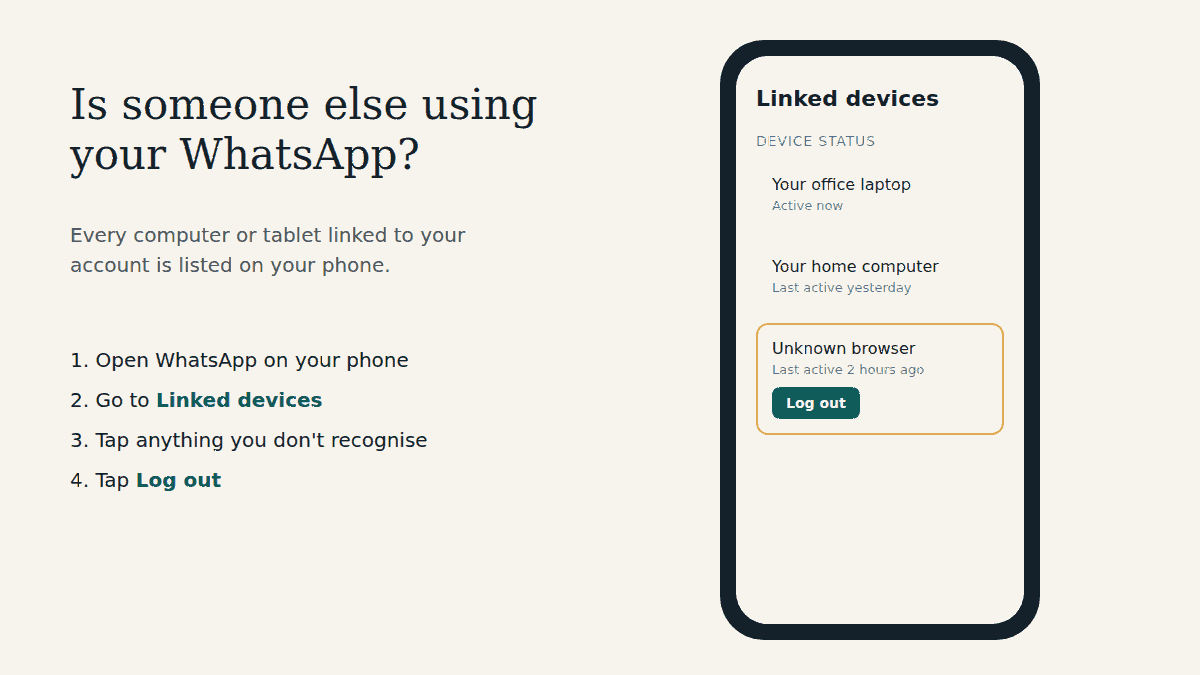
    Diagram of a phone's Linked devices list with two familiar computers and one unknown browser highlighted with a Log out button
    An illustration of the idea, not a screenshot: the real list on your phone may look slightly different.

    Why this check works

    WhatsApp Web isn’t a separate account. It’s a device linked to the WhatsApp account on your phone, and you can link up to four of them. Nobody can read your chats on WhatsApp Web unless their device is linked, and every linked device shows up in one place on your phone. That makes it one of the easiest security checks you can do.

    Step 1: Open Linked devices

    On Android

    1. Open WhatsApp.
    2. Tap the three-dot menu (⋮) at the top right.
    3. Tap Linked devices.

    On iPhone

    1. Open WhatsApp.
    2. Tap Settings (or your profile picture).
    3. Tap Linked devices.

    Step 2: Read the list carefully

    Each entry is one linked device, usually shown with the browser or operating system and when it was last active. Go through them one at a time and ask:

    • Do I own or use this device? A “Chrome (Windows)” entry might be your work laptop. Or it might not.
    • Does the “last active” time make sense? If it says active 2 hours ago and you haven’t touched a computer today, that’s a red flag.
    • Is it an old computer I forgot about? A cyber café PC, a friend’s laptop, your old office computer. Even if it’s harmless, you don’t need it linked.

    If you’re not sure about an entry, treat it as unknown. Logging out a device you actually use costs you nothing except linking it again next time.

    Step 3: Log out anything you don’t recognise

    1. In Linked devices, tap the device.
    2. Tap Log out and confirm.
    3. Repeat for every device you don’t recognise.

    The device loses access to your account straight away. Whoever was using it would need your phone to link again, which is why the next step matters.

    Step 4: Stop it happening again

    An unknown device almost always got there in one of three ways: someone used your unlocked phone to scan a code, you were tricked into scanning or typing a code, or you left WhatsApp Web open on a shared computer. So:

    • Lock your phone with a PIN, fingerprint or face, and don’t leave it unlocked around others. Linking a device asks for this same verification.
    • Never scan or enter a code that someone sends you, whether it’s in a message, on a “vote” page or on a site asking you to “verify”. Linking codes should only go from a computer you’re sitting at into your own phone.
    • Turn on two-step verification in Settings > Account > Two-step verification.
    • Keep WhatsApp notifications on. WhatsApp recommends this so you can review and remove a device you don’t recognise as soon as it’s linked.

    Our WhatsApp Web safety guide explains these habits in more detail, including the “GhostPairing” and fake voting scams.

    Other signs someone may be reading your messages

    • A WhatsApp notification about a new linked device you didn’t add
    • Messages showing as read before you opened them
    • Sent messages you didn’t write, or contacts replying to messages you never sent

    These point to the same fix: check Linked devices and log out what isn’t yours. If you’ve been logged out of WhatsApp on your own phone, that’s a different problem: someone may have registered your number elsewhere. Follow the official recovery steps in the WhatsApp Help Center.

    Frequently asked questions

    Can I see which messages they read?

    No. WhatsApp doesn’t show a history of what a linked device looked at. Assume anything in your chats could have been seen, and warn contacts if sensitive information was shared.

    Will the other person know I logged them out?

    Their WhatsApp Web session ends and they’d be back at the login screen, so they may notice they’ve lost access. That’s fine: without your phone, they can’t link again.

    Do linked devices disconnect on their own?

    Yes. WhatsApp automatically disconnects a linked device after 30 days of inactivity, and logs out linked devices if your primary phone isn’t used for more than 14 days. A device that’s actively being used, though, stays linked until someone logs it out, so don’t rely on this.

    How often should I check?

    Make it a habit: once a month, after using any shared computer, and immediately if you get a linking notification you didn’t expect.

    Related guides

    Sources checked: WhatsApp Help Center articles “About linked devices”, “How to link a device” and “How to unlink a device” (faq.whatsapp.com). Reviewed September 30, 2026.


    This is an independent guide. We are not affiliated with, endorsed by, or connected to WhatsApp or Meta.

  • WhatsApp Web Safety Guide: Precautions Everyone Should Take

    WhatsApp Web Safety Guide: Precautions Everyone Should Take

    Last updated: September 30, 2026

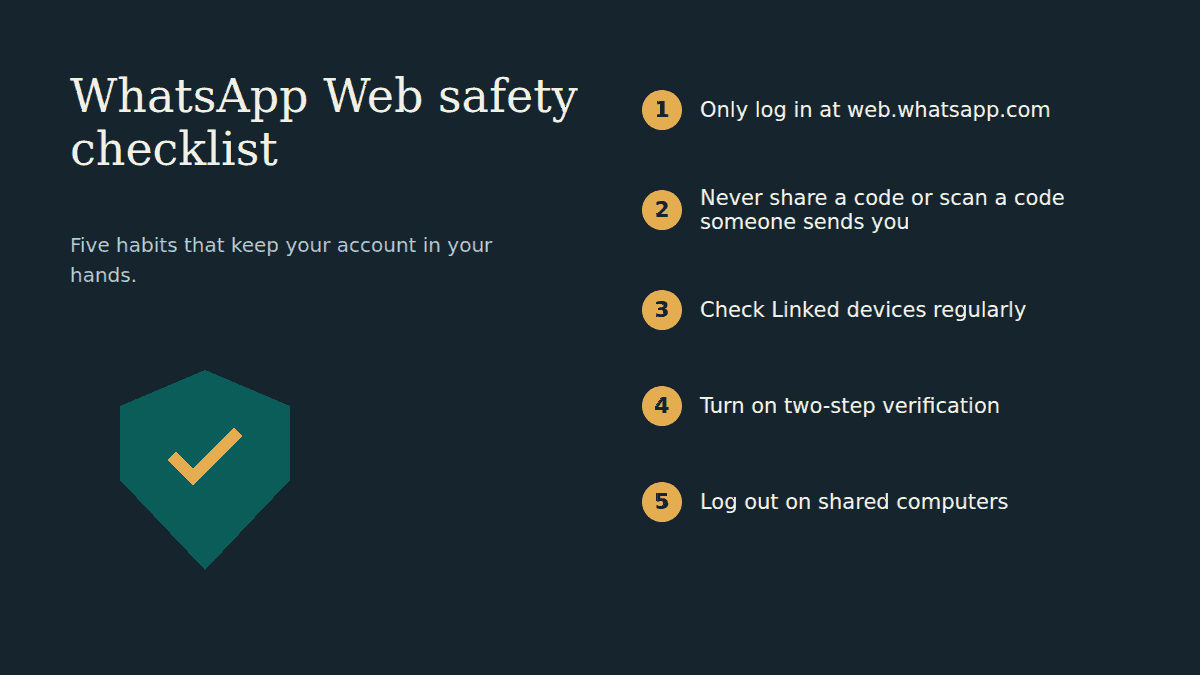
    The short answer: WhatsApp Web itself is safe to use. The risk comes from someone else getting a computer linked to your account, usually by tricking you into scanning a code, typing a code, or logging in on a fake website. Only log in at web.whatsapp.com, never share or enter a code someone sends you, check Linked devices on your phone regularly, turn on two-step verification, and log out of computers that aren’t yours.

    This guide explains why each of those habits matters, so you can spot a trick you haven’t seen before, not just the ones listed here.

    Safety checklist graphic with a shield and five numbered habits: log in only at web.whatsapp.com, never share codes, check linked devices, turn on two-step verification, log out on shared computers

    How WhatsApp Web accounts actually get taken over

    Your messages are end-to-end encrypted, and WhatsApp says each linked device connects to your account independently with the same level of encryption. So attackers rarely try to “break in”. It’s much easier to get you to let them in. Nearly every takeover follows one of these patterns:

    • A linking trick. You’re persuaded to scan a code or type a code into WhatsApp that actually links the attacker’s computer to your account.
    • A stolen verification code. Someone tries to register your phone number on their phone and asks you to “forward the code you just got by mistake”.
    • An open computer. You used WhatsApp Web on an office, library or cyber café computer and never logged out.
    • An unofficial app or website. A “WhatsApp tool”, mod app or extension that asks you to link your account.

    The five habits below close each of these doors.

    1. Only log in at web.whatsapp.com

    The official address is https://web.whatsapp.com. Before you scan anything, look at the address bar and check that the part just before the first single “/” is exactly web.whatsapp.com. Fake pages use addresses that look close, add extra words, or hide the real address behind a shortened link.

    The safest routine: type the address yourself once, then bookmark it and always use that bookmark. Don’t “log in to WhatsApp” from a link in a message, an email, a search ad or a social media post. Also remember: WhatsApp Web never asks for a username or password. A page that does is fake.

    2. Never share a code, and never scan or enter a code someone sends you

    This is the single most important rule. There are two kinds of codes, and both can be used against you:

    • The verification code WhatsApp sends by SMS or call when a phone number is registered. WhatsApp’s own advice is to never share it with anyone. If you get one you didn’t ask for, someone typed your number, either by mistake or to try to take your account. Without that code, they can’t finish.
    • Linking codes: the QR code on a computer screen and the 8-character code used to link with a phone number. Legitimately, these only ever go from a computer you are sitting at into your own phone. If a website or person shows you a code to scan or type into WhatsApp, you’d be linking their device to your account.

    Scammers dress these requests up well. Security researchers at Gen Digital described a campaign they called “GhostPairing” in December 2025: victims got a message from a friend’s (already hijacked) account saying something like “I just found your photo!”, with a link to a fake page that asked them to “verify” by scanning or entering a code. That code linked the attacker’s device. Reports in 2026 described the same trick disguised as “vote for my friend in a competition”. The disguise changes; the ask is always a code.

    Quick safety tip: when linking, WhatsApp may show you the name and location of the device asking to link, or warn you about an unrecognised device with a Don’t link button. If you didn’t just start a login on a computer in front of you, tap Don’t link.

    3. Check Linked devices regularly

    Every computer, tablet or other device connected to your account appears under Linked devices on your phone. It takes ten seconds to look, and it’s the fastest way to catch a problem. If you see anything you don’t recognise, tap it and choose Log out. We walk through it step by step in how to check if someone is using your WhatsApp Web.

    WhatsApp also recommends keeping push notifications turned on for WhatsApp on your phone. When a new device is linked, you can tap the notification to review it and remove it if you don’t recognise it.

    4. Turn on two-step verification (and consider a passkey)

    Two-step verification adds a password that’s needed when your number is registered on a phone. Even if someone gets your SMS code, they’d still need that password. WhatsApp is moving from the old 6-digit PIN to a password, and you can add an email address so you can reset it if you forget.

    1. On your phone, open WhatsApp Settings > Account > Two-step verification.
    2. Turn on two-step verification.
    3. Create a strong password and confirm it. Don’t reuse a password from another account.
    4. Add an email address you can access (recommended), then follow the prompts.

    You can also set up a passkey, which links your account to your phone’s own security (fingerprint, face or screen lock) and makes logging in faster when two-step verification is on. WhatsApp’s Help Center article on two-step verification links to the current setup steps.

    5. Log out of computers that aren’t yours

    On a shared, office, school or cyber café computer, anyone who sits down after you can read and send messages as you until the session is closed. Before you leave:

    • Open WhatsApp’s Settings on the computer and choose Log out.
    • Forgot? Log it out from your phone: Linked devices, tap the computer, Log out. This works from anywhere.
    • If the browser offers a private or incognito window, use it on shared computers, and don’t let the browser “remember” anything.

    Avoid unofficial apps, mods and “WhatsApp tools”

    WhatsApp says you should only link your account on its official apps and websites: WhatsApp Web, WhatsApp for Windows and Mac, and its official apps for tablets and other supported devices. Unofficial apps and websites (modified WhatsApp versions, “chat backup” sites, “see who viewed your profile” tools) can’t be checked for security, and WhatsApp warns that linking your account to one, now or in the past, can lead to a temporary or permanent ban. They can also be used to send spam and scams to your contacts from your account.

    Warning signs something is wrong

    • A device you don’t recognise in Linked devices
    • A WhatsApp verification code or linking notification you didn’t request
    • Friends asking about messages you didn’t send, especially requests for money, votes or codes
    • Chats marked as read that you haven’t opened

    If you notice any of these: log out every device you don’t recognise, turn on two-step verification if it’s off, and warn your contacts not to act on recent messages “from you”. If you’ve been logged out of WhatsApp on your own phone, use WhatsApp’s official guidance on recovering a compromised account in the WhatsApp Help Center.

    Frequently asked questions

    Is WhatsApp Web safe to use?

    Yes, when you use the official site at web.whatsapp.com. Messages are end-to-end encrypted on linked devices just as they are on your phone. The real risks are fake websites, shared codes and computers you forget to log out of.

    Can someone use my WhatsApp Web without my phone?

    They can’t link a new computer without your phone being involved. That’s why scammers try to get you to scan or enter a code for them. Once a device is linked, though, it keeps working even when your phone is off, which is why checking Linked devices matters.

    Does logging out on my phone log out WhatsApp Web too?

    To disconnect a specific computer, use Linked devices on your phone and choose Log out for that device. That removes it right away without affecting your phone.

    Related guides

    Sources checked: WhatsApp Help Center articles “About linked devices”, “Received verification code without requesting it”, “About two-step verification” and “How to manage two-step verification settings” (faq.whatsapp.com); Security Affairs report on the GhostPairing campaign (December 2025); Forbes report on the voting-link scam (August 2026). Reviewed September 30, 2026.


    This is an independent guide. We are not affiliated with, endorsed by, or connected to WhatsApp or Meta.