Last updated: September 30, 2026
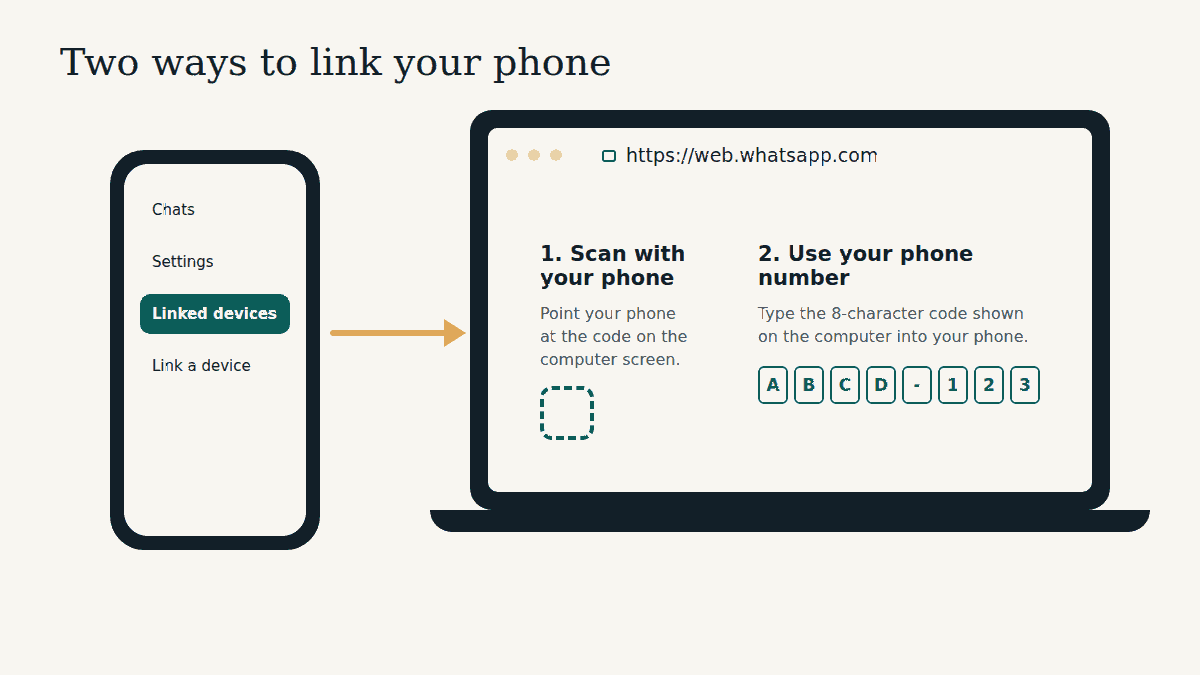
The short answer: open https://web.whatsapp.com on your computer, then open WhatsApp on your phone and go to Linked devices > Link a device. Either scan the code on the computer screen with your phone, or choose to log in with your phone number and type the 8-character code the computer shows you into your phone. Your chats appear on the computer within a few seconds.
There’s no username or password for WhatsApp Web. Your phone is the key: the computer becomes a “linked device” of the WhatsApp account on your phone. The rest of this guide walks through both methods on Android and iPhone, what to do if something goes wrong, and the checks that keep your account safe.
Before you start
- Your phone with WhatsApp already set up. WhatsApp Web can’t create an account. The phone where you registered your number is your “primary” device.
- A computer with an up-to-date browser. WhatsApp lists the browsers it supports in its Help Center. Updating your browser solves a surprising number of login problems.
- The real address. Type web.whatsapp.com yourself into the address bar, or use a bookmark you made. Don’t follow a link from a message or an ad to “log in”. More on why in the WhatsApp Web safety guide.
Method 1: Log in by scanning the QR code
This is the quickest method when your phone’s camera works and you’re sitting at the computer.
On an Android phone
- On your computer, go to https://web.whatsapp.com. A square code appears on the screen.
- On your phone, open WhatsApp and tap the three-dot menu (⋮) at the top right.
- Tap Linked devices, then Link a device.
- If asked, confirm it’s you with your fingerprint, face, or the PIN you use to unlock your phone.
- Point your phone at the code on the computer screen. Hold it steady until the phone vibrates or the screen changes.
On an iPhone
- On your computer, go to https://web.whatsapp.com.
- On your iPhone, open WhatsApp and tap Settings (or your profile picture, depending on your version).
- Tap Linked devices, then Link device.
- Unlock with Face ID, Touch ID or your passcode if asked.
- Point the iPhone at the code on your computer screen.
If WhatsApp doesn’t recognise the computer, it may ask whether you really want to link it, with the choices Link device and Don’t link. If you’re at your own computer and just started this, tap Link device. If you didn’t start a login yourself, tap Don’t link.
Method 2: Log in with your phone number (no scanning)
Useful when your phone’s camera is broken, the code won’t scan, or you find typing easier than aiming a camera. WhatsApp says this option is available on WhatsApp Web and WhatsApp for Windows.
- On https://web.whatsapp.com, click Log in with phone number (it may say Link with phone number).
- Choose your country and type the phone number of your WhatsApp account. Click Next.
- The computer shows an 8-character code. Leave it on screen.
- Your phone gets a WhatsApp notification to enter a code to link a new device. Tap it.
- Your phone shows the name and location of the device asking to link. If it matches the computer in front of you, tap Confirm, then verify with your fingerprint, face or PIN if asked.
- Type the 8-character code from the computer into your phone.
No notification? On Android you can start from the phone instead: tap ⋮ > Linked devices > Link a device > Link with phone number instead, then enter the code shown on the computer.
Quick safety tip: the code always travels one way, from the computer you are sitting at into your own phone. If a website, a message or a person gives you a code to type into WhatsApp, or asks you for one, stop. That’s how accounts are hijacked. See how to check who is linked to your account.
QR code or phone number: which should you use?
| Scan the QR code | Log in with phone number | |
|---|---|---|
| Needs a working phone camera | Yes | No |
| Speed | Fastest, one scan | A little longer, you type a code |
| Good for | Most people, most of the time | Broken camera, scanning problems, low vision |
| Where it works | WhatsApp Web and desktop apps | WhatsApp Web and WhatsApp for Windows |
After you’re logged in: what to expect
- Your phone doesn’t need to stay online. Linked devices work on their own, even when your phone is switched off.
- But you must use your phone every so often. WhatsApp logs out linked devices if you don’t use WhatsApp on your primary phone for more than 14 days.
- Unused computers are logged out automatically. A linked device that isn’t used for 30 days is disconnected.
- Up to four linked devices. You can link up to four devices at a time, such as a work laptop, a home computer and a tablet.
- A few features stay on the phone. WhatsApp lists viewing live location and creating or viewing broadcast lists among features linked devices don’t support.
If the login doesn’t work
Try these in order. Most problems are solved by the first three.
- Reload the page on the computer. A code that has been sitting on screen for a while may no longer work, and reloading gives you a fresh one.
- Update WhatsApp on your phone and update your browser on the computer.
- Check both connections. The phone and the computer both need internet while you link. Office and school networks sometimes block WhatsApp Web; try another network if you can.
- Make the code easier to scan: raise the screen brightness, zoom the browser to 100%, wipe the phone camera, and hold the phone 20–30 cm away.
- Switch methods. If scanning keeps failing, use the phone number method above.
- Check you haven’t reached four devices. Open Linked devices on your phone and log out of one you no longer use.
How to log out of WhatsApp Web
Always log out when you’ve used a computer that isn’t yours. There are two ways:
- On the computer: open WhatsApp’s Settings, choose Log out, and confirm.
- From your phone (works even if you’ve left the computer): go to Linked devices, tap the computer in the list, and tap Log out.
Frequently asked questions
Can I log in to WhatsApp Web without my phone?
Not for the first login. You need your primary phone to link a new device, either by scanning the code or by entering the 8-character code. After that, the computer keeps working even when the phone is off, as long as you open WhatsApp on the phone at least every 14 days.
Is there a WhatsApp Web password?
No. Any page that asks for a WhatsApp username and password to “log in to WhatsApp Web” is fake. The only real login is the link-a-device process described above, at web.whatsapp.com.
Can I use WhatsApp Web on more than one computer?
Yes. You can link up to four devices at the same time, and each one shows up separately in Linked devices on your phone.
Why did WhatsApp Web log me out by itself?
The usual reasons are: you haven’t used WhatsApp on your phone for over 14 days, the computer wasn’t used for 30 days, someone logged it out from the phone, or the browser’s data was cleared. Just link it again.
Keep reading
- WhatsApp Web safety guide: precautions everyone should take
- How to check if someone is using your WhatsApp Web
- New to WhatsApp Web? Start here
Sources checked: WhatsApp Help Center articles “How to link a device”, “How to link a device with phone number”, “About linked devices” and “How to unlink a device” (faq.whatsapp.com), reviewed September 30, 2026.
This is an independent guide. We are not affiliated with, endorsed by, or connected to WhatsApp or Meta.
Guides: Login & Access · Features & Calling · Desktop & Other Ways · Safety · Fix Problems · Start Here
About this site: About · Contact · Privacy Policy · Terms of Use · Cookies · Disclaimer