Category: Fix Problems

WhatsApp Web not loading, QR code not scanning, notifications silent, or it keeps logging you out? These troubleshooting guides go from the quickest checks to the less obvious causes, so you can fix the problem without guesswork.

  • WhatsApp Web Not Working? Every Fix, Problem by Problem

    WhatsApp Web Not Working? Every Fix, Problem by Problem

    Last updated: October 25, 2026

    The short answer: most WhatsApp Web problems come from a weak internet connection or the browser. Reload web.whatsapp.com, check your internet, use an up-to-date browser, and clear the browser’s cache and cookies. If it logged you out by itself, open WhatsApp on your phone (it needs to be used at least every 14 days) and link the computer again. Find your exact problem below for the full fix.
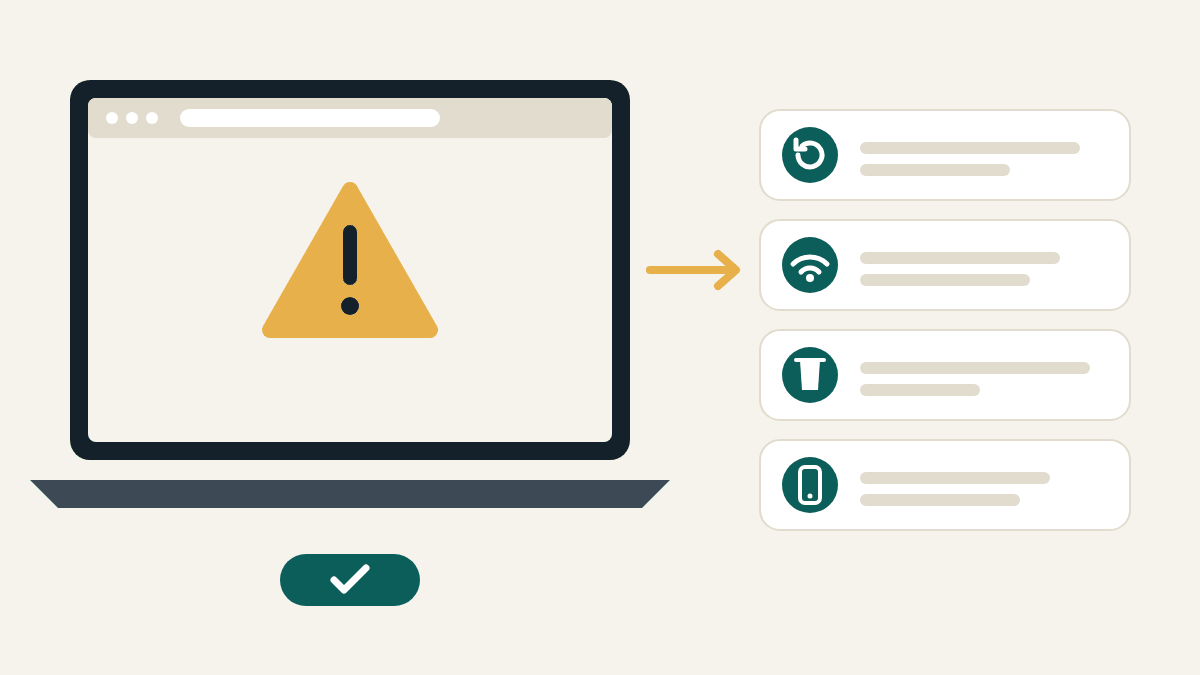
    Illustration of a laptop browser showing a warning sign, with an arrow to four fix cards: reload, check Wi-Fi, clear browser data, and open WhatsApp on your phone
    Reload, check the connection, clear browser data, and open WhatsApp on your phone: these four fix most problems.

    Start here: three quick checks

    1. Is it the real site? The address bar must say exactly web.whatsapp.com. Copycat pages “don’t work” because they’re fakes.
    2. Is the computer online? Open any other website. If that fails too, the problem is your internet, not WhatsApp.
    3. Is WhatsApp working on your phone? Open it and send yourself a test message. Your phone should also have been used for WhatsApp in the last 14 days, or linked devices are logged out.

    WhatsApp Web won’t load, or the page is blank

    1. Reload the page.
    2. Use a supported browser. WhatsApp Web works on the latest versions of Chrome, Firefox, Microsoft Edge, Opera and Safari. It doesn’t work on some older browsers, including Internet Explorer. Update your browser if it’s out of date.
    3. Clear the browser’s cache and cookies, then open web.whatsapp.com again. Your browser’s help pages show how.
    4. Try a private/incognito window. If it works there, an extension (such as an ad or script blocker) is probably the cause. Turn extensions off one by one to find it.
    5. Restart the computer. WhatsApp suggests turning the device off, waiting 30 seconds, and turning it back on.

    “Computer not connected” or messages won’t send

    WhatsApp says a poor internet connection is the most common reason for problems sending and receiving chats or uploading and downloading photos and videos. A yellow icon next to Computer not connected means the computer may not have an active internet connection.

    1. Check the computer’s internet. If there’s no connection at all, contact your internet provider.
    2. Refresh the page, then log out of WhatsApp Web and log back in.
    3. Try another network. Office and university Wi-Fi sometimes blocks WhatsApp. Switch to a different Wi-Fi network or a phone hotspot.
    4. If you manage the network, WhatsApp says to set it to let traffic to web.whatsapp.com and .whatsapp.net through.

    WhatsApp Web keeps logging out

    A linked computer gets logged out when:

    • Your phone hasn’t used WhatsApp for more than 14 days. Open WhatsApp on your primary phone regularly to keep linked devices connected.
    • The computer wasn’t used for 30 days. WhatsApp disconnects inactive linked devices automatically.
    • The browser’s data was cleared, for example by a cleaning tool, a private window, or a browser set to delete cookies when it closes.
    • Someone logged it out from the phone in Linked devices.

    The fix is to link the computer again. If you didn’t log it out and none of the reasons above fit, check the Linked devices list on your phone for anything you don’t recognise: see how to check if someone is using your WhatsApp Web.

    Can’t log in, or the QR code won’t scan

    • Scan from inside WhatsApp (Linked devices > Link a device), not your camera app.
    • You can link up to four devices. If you already have four, log one out first.
    • No camera? Use Log in with phone number and enter the 8-character code on your phone instead.

    Every step for this problem is in WhatsApp Web QR code not working? Fixes, and the normal login steps are in how to log in to WhatsApp Web.

    Calls don’t work

    WhatsApp is rolling out calling on WhatsApp Web gradually, so call buttons may not have reached your account yet. If they’re there but nobody can hear you, allow the microphone and camera for web.whatsapp.com in your browser and in your computer’s privacy settings. Details: how to make voice and video calls on WhatsApp Web.

    Some features are missing

    That may be normal. WhatsApp says viewing live location and creating or viewing broadcast lists aren’t supported on linked devices. Use your phone for those.

    Quick fix table

    ProblemTry first
    Page blank or won’t loadReload, update browser, clear cache and cookies
    “Computer not connected”Check internet, try another network or hotspot
    Messages or photos stuckCheck connection, log out and back in
    Logged out by itselfOpen WhatsApp on your phone, link again
    QR code won’t scanScan from Linked devices, or log in with phone number
    No call buttonsFeature still rolling out; update browser

    Still not working?

    • Try a different browser, or WhatsApp’s desktop app for Windows or Mac.
    • Check WhatsApp’s own help pages and contact options in the WhatsApp Help Center.

    Safety tip: people who offer to “fix” your WhatsApp by message, phone call or a website often want your code. WhatsApp support will never ask you to share a verification code or scan a code they send. More in our WhatsApp Web safety guide.

    Frequently asked questions

    Does my phone need to be on for WhatsApp Web to work?

    No. Linked devices work even when your phone is off. But WhatsApp logs them out if you don’t use WhatsApp on your phone for more than 14 days.

    Why does WhatsApp Web work at home but not at the office?

    Office, school and university networks sometimes block WhatsApp. Try a hotspot, or ask the network administrator to allow web.whatsapp.com and .whatsapp.net.

    Will clearing cookies delete my chats?

    It logs WhatsApp Web out in that browser, but your chats stay on your phone and come back when you link the computer again.

    Does WhatsApp Web work in Internet Explorer?

    No. Use the latest Chrome, Firefox, Microsoft Edge, Opera or Safari.

    Related guides

    Sources checked: WhatsApp Help Center articles “How to fix connection issues” (WhatsApp Web), “About linked devices”, “How to link a device” and “How to link a device with phone number” (faq.whatsapp.com); WhatsApp Blog, “Introducing Web Calling on WhatsApp” (July 28, 2026). Reviewed October 25, 2026.


    This is an independent guide. We are not affiliated with, endorsed by, or connected to WhatsApp or Meta.

  • WhatsApp Web QR Code Not Working? Fixes for Not Loading and Not Scanning

    WhatsApp Web QR Code Not Working? Fixes for Not Loading and Not Scanning

    Last updated: October 1, 2026

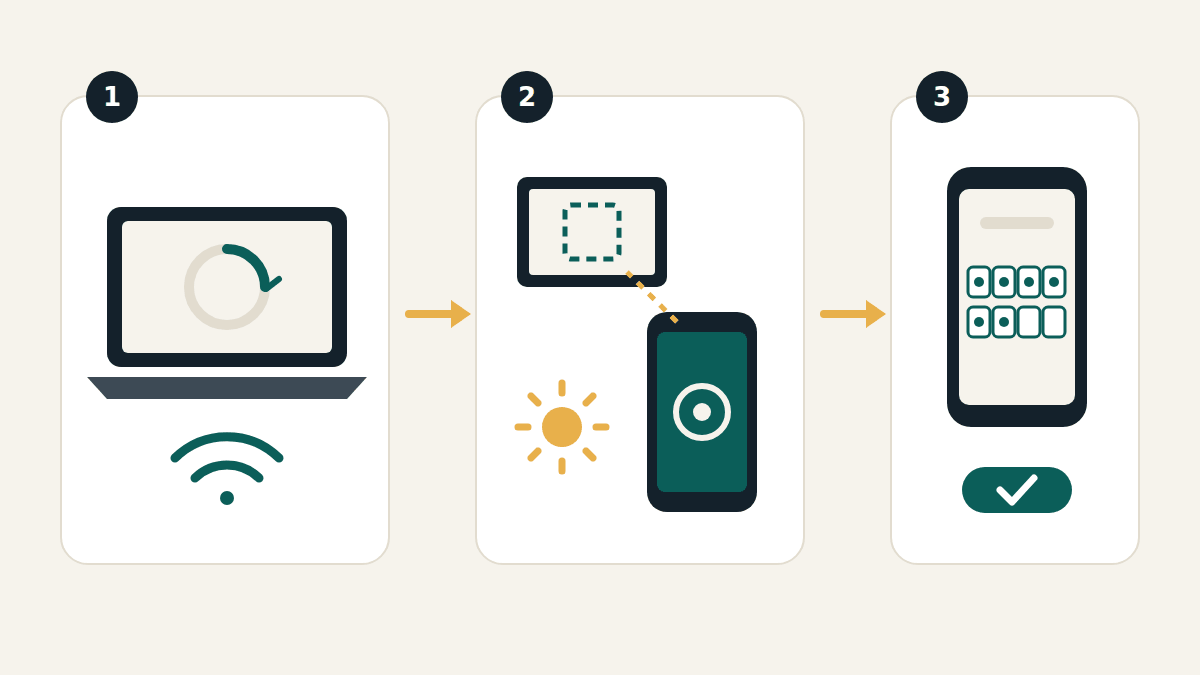
    The short answer: if the QR code won’t appear, the problem is on the computer: reload web.whatsapp.com, use an up-to-date browser, and try another network. If your phone won’t scan it, make sure you’re scanning from inside WhatsApp (Linked devices > Link a device), not your camera app, then turn up the screen brightness and hold the phone steady. Still stuck? Skip the QR code completely and link with your phone number instead.

    Work through the sections below in order. Most people are fixed within the first two or three steps.

    Three-step diagram: a laptop with a reload symbol and Wi-Fi icon, a phone camera aimed at a computer screen next to a brightness symbol, and a phone with an 8-character code entry and a confirm tick
    Fix the computer first, then the phone. If neither works, use the 8-character code.

    First: are you on the real WhatsApp Web?

    Check the address bar. It must say exactly web.whatsapp.com. Fake pages often show a code that never works, or ask for a username and password (WhatsApp Web never does). If you got there from a link in a message or an ad, close the tab and type the address yourself.

    If the QR code doesn’t appear or keeps loading

    A blank box, an endless spinner or a code that never shows up means the page can’t reach WhatsApp properly. Try these on the computer:

    1. Reload the page. This also gives you a fresh code.
    2. Use a supported, up-to-date browser. WhatsApp Web works on the latest versions of Chrome, Firefox, Microsoft Edge, Opera and Safari. It doesn’t work on some older browsers, including Internet Explorer.
    3. Clear your browser’s cache and cookies, then open web.whatsapp.com again. Your browser’s help pages explain how.
    4. Try a private/incognito window. If the code appears there, a browser extension (such as an ad or script blocker) is probably getting in the way. Turn extensions off one at a time to find it.
    5. Change networks. Office, school and university Wi-Fi sometimes blocks WhatsApp. Try a different Wi-Fi network or your phone’s hotspot. If you manage the network, WhatsApp says to let traffic to web.whatsapp.com and .whatsapp.net through.
    6. Restart the computer. WhatsApp suggests turning the device off, waiting 30 seconds and turning it back on.

    If your phone won’t scan the QR code

    The code is on screen but nothing happens when you point your phone at it. Check these, in this order:

    1. Scan from inside WhatsApp, not your camera app. A normal camera or QR scanner app can’t link your account. On Android, open WhatsApp and tap ⋮ > Linked devices > Link a device. On iPhone, tap Settings > Linked devices > Link a device. Then point the phone at the code.
    2. Get past the identity check. WhatsApp may ask for your fingerprint, face or the PIN that unlocks your phone before the scanner opens. That’s normal.
    3. Make the code easy to read. Turn the computer screen’s brightness up, set the browser zoom to 100%, and wipe the phone’s camera lens. Hold the phone about 20–30 cm away, straight on, and keep it still. Avoid reflections from lamps or windows on the screen.
    4. Reload for a fresh code. If the code has been on screen for a while, reload web.whatsapp.com and scan the new one straight away.
    5. Check WhatsApp’s camera permission. If the scanner shows a black screen, open your phone’s settings, find WhatsApp, and allow access to the camera.
    6. Update WhatsApp on your phone from the Play Store or App Store, then try again.

    If it scans but you don’t get logged in

    • Both devices need internet. Your phone and the computer must both be online while they link.
    • You may already have four linked devices. WhatsApp allows up to four. Open Linked devices on your phone and log out one you no longer use.
    • Use your primary phone. Linking is done from the phone where your number is registered.
    • Answer the confirmation. If WhatsApp doesn’t recognise the computer, it asks whether you want to link it. Tap Link device only if it’s the computer in front of you.

    Skip the QR code: link with your phone number

    If the camera is broken or the code simply won’t scan, you don’t need it. On web.whatsapp.com, choose Log in with phone number, enter your number, and the computer shows an 8-character code. Tap the notification on your phone, confirm, and type that code into your phone. WhatsApp says this option works on WhatsApp Web and WhatsApp for Windows. Full steps are in our WhatsApp Web login guide.

    Safety tip: only scan a WhatsApp code that’s on a computer you are sitting at. Never scan a code, or type a code, that someone sends you in a message or shows you on another website. That links their device to your account. Read why in our WhatsApp Web safety guide.

    Quick fix table

    What you seeMost likely causeTry this
    No code, or it keeps loadingBrowser or networkReload, update browser, clear cache, try another network
    Code shows, phone does nothingScanning from the wrong appUse WhatsApp: Linked devices > Link a device
    Scanner is blackNo camera permissionAllow camera access for WhatsApp in phone settings
    Phone can’t focusDim screen, glare, dirty lensBrighter screen, zoom 100%, clean lens, hold steady
    Scans, but no loginOffline device or 4 devices already linkedCheck internet, remove an old linked device
    Camera broken–Log in with phone number (8-character code)

    Frequently asked questions

    Can I scan the WhatsApp Web QR code with Google Lens or my camera app?

    No. The code has to be scanned from inside WhatsApp, under Linked devices, so WhatsApp knows which account to link. Another app will only read it as text.

    Why does the QR code keep changing?

    The code on screen changes after a short time. That’s normal. Just scan whichever code is showing when your phone is ready, or reload the page for a new one.

    Does WhatsApp Web work on Internet Explorer?

    No. Use the latest version of Chrome, Firefox, Microsoft Edge, Opera or Safari.

    Can I log in without scanning anything?

    Yes. Choose to log in with your phone number on web.whatsapp.com and enter the 8-character code on your phone. You still need your phone, but not its camera.

    Related guides

    Sources checked: WhatsApp Help Center articles “How to fix connection issues” (WhatsApp Web), “How to link a device”, “How to link a device with phone number” and “About linked devices” (faq.whatsapp.com). Reviewed October 1, 2026.


    This is an independent guide. We are not affiliated with, endorsed by, or connected to WhatsApp or Meta.