
Last updated: October 8, 2026
The short answer: open web.whatsapp.com, open the chat or group you want to call, and use the voice or video call button. The first time, your browser asks to use your microphone (and camera for video): choose Allow. WhatsApp announced browser calling on July 28, 2026 and is rolling it out gradually, so if you don’t see call buttons yet, the feature simply hasn’t reached your account.
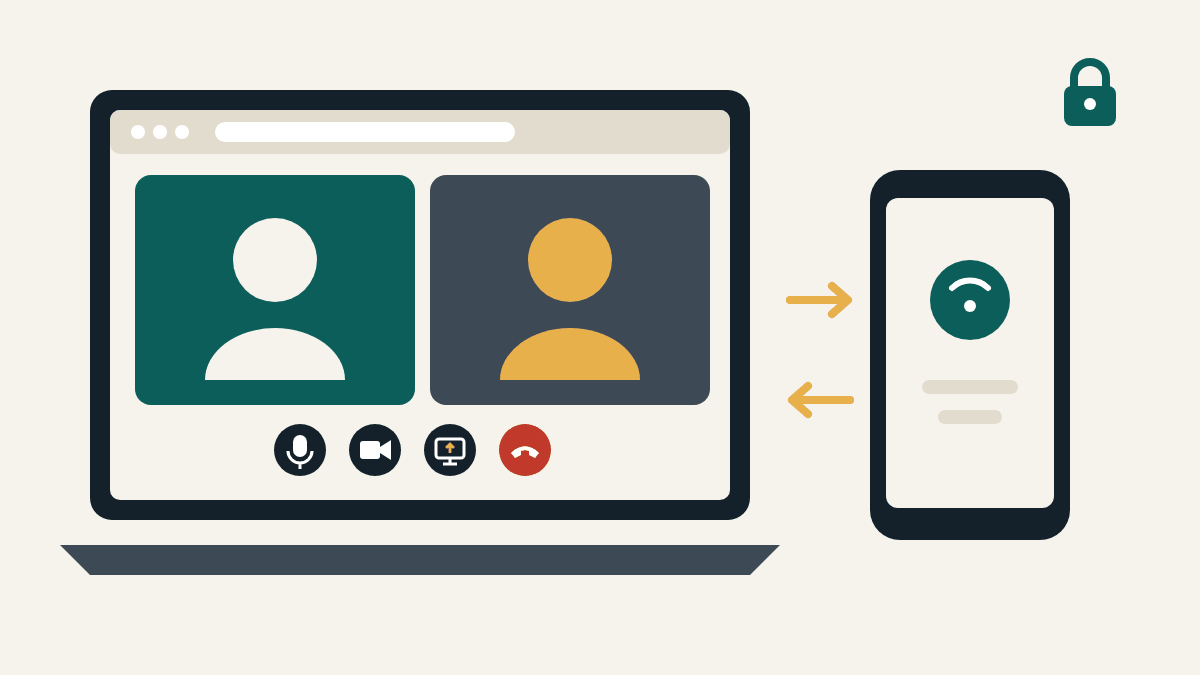
What WhatsApp Web calling can do
Until 2026 you needed the WhatsApp desktop app to make calls from a computer. In its July 28, 2026 announcement, WhatsApp said you can now:
- Make and receive audio and video calls, both one-to-one and in groups, directly from WhatsApp Web, with no app download.
- Share your screen and send reactions during a call.
- Use a Calls tab with your full call history and favourites.
- Call privately and for free: WhatsApp says web calls are end-to-end encrypted, with no time limits and at no cost.
WhatsApp says these features are “rolling out gradually”, so some people will get them before others.
How to make a call on WhatsApp Web
- On your computer, go to https://web.whatsapp.com and log in. New to this? See how to log in to WhatsApp Web.
- Open the chat with the person, or the group, you want to call. You can also start from the Calls tab.
- Choose a voice call or a video call using the call buttons.
- When the browser asks to use your microphone (and camera for video), choose Allow. You usually only need to do this once.
- To share your screen, use the screen-sharing button during the call and pick the window or screen you want to show. Share only what you’re happy for everyone on the call to see.
To answer an incoming call, keep the WhatsApp Web tab open. When someone calls, accept it on the computer just as you would on your phone.
Other new calling features
WhatsApp announced these at the same time:
- Call transfer: move an active group call from one device to another without hanging up, for example from your phone or tablet to WhatsApp Web or Desktop, or back.
- Waiting room: if you create a call link with Require approval to join turned on, people wait until you let them in.
- QuickHD: high-definition video from the first few seconds of a call.
- Noise suppression: reduces background noise around you. You can manage it any time in your in-call settings.
Call not working? Fixes
No call buttons
- The feature may not have reached your account yet. WhatsApp is rolling it out gradually.
- Reload web.whatsapp.com and make sure your browser is up to date. WhatsApp Web works on the latest versions of Chrome, Firefox, Microsoft Edge, Opera and Safari.
- Need to call from a computer today? WhatsApp’s desktop app for Windows and Mac also supports calls.
The other person can’t hear or see you
- Check the browser permission. Click the icon at the left of the address bar on web.whatsapp.com and make sure Microphone and Camera are set to Allow. Then reload the page.
- Check your computer’s privacy settings. On Windows, open Settings > Privacy & security > Microphone (and Camera) and allow your browser. On a Mac, open System Settings > Privacy & Security, then Microphone and Camera.
- Close other apps that use the camera, like another video-call app. Usually only one app can use the camera at a time.
- Pick the right device. If you have a headset or an external webcam, make sure the browser is using it.
Echo, choppy audio or a frozen picture
- Use headphones to stop echo.
- Move closer to the Wi-Fi router, or switch off video and keep audio if the connection is weak.
- Office and college networks sometimes block WhatsApp. Try another network or a hotspot.
Safety tip: only call from the real web.whatsapp.com. Be careful with call links from people you don’t know, and never share a WhatsApp code with someone during or after a call, even if they say they’re from “WhatsApp support”. Read more in our WhatsApp Web safety guide.
Frequently asked questions
Do I need to install anything to call on WhatsApp Web?
No. WhatsApp says calling on the web needs no app download. You only need to allow your browser to use your microphone and camera.
Are WhatsApp Web calls free and private?
WhatsApp says web calls are end-to-end encrypted, have no time limits and cost nothing. Your internet provider’s normal data charges still apply.
Can I make group calls on WhatsApp Web?
Yes. WhatsApp’s announcement covers both one-to-one and group calls, and you can move an active group call between your phone and computer without hanging up.
Why can my friend call on WhatsApp Web but I can’t?
The feature is rolling out gradually, so it can reach one account before another. Keep your browser up to date and check again later.
Related guides
- How to log in to WhatsApp Web (QR code or phone number)
- WhatsApp Web QR code not working? Fixes
- WhatsApp Web safety guide
Sources checked: WhatsApp Blog, “Introducing Web Calling on WhatsApp, Plus More New Updates” (blog.whatsapp.com, July 28, 2026); Meta Newsroom, “Introducing WhatsApp Web Calling, Plus More New Features” (about.fb.com, July 2026); WhatsApp Help Center, “How to fix connection issues” (faq.whatsapp.com). Reviewed October 8, 2026.
This is an independent guide. We are not affiliated with, endorsed by, or connected to WhatsApp or Meta.
Guides: Login & Access · Features & Calling · Desktop & Other Ways · Safety · Fix Problems · Start Here
About this site: About · Contact · Privacy Policy · Terms of Use · Cookies · Disclaimer